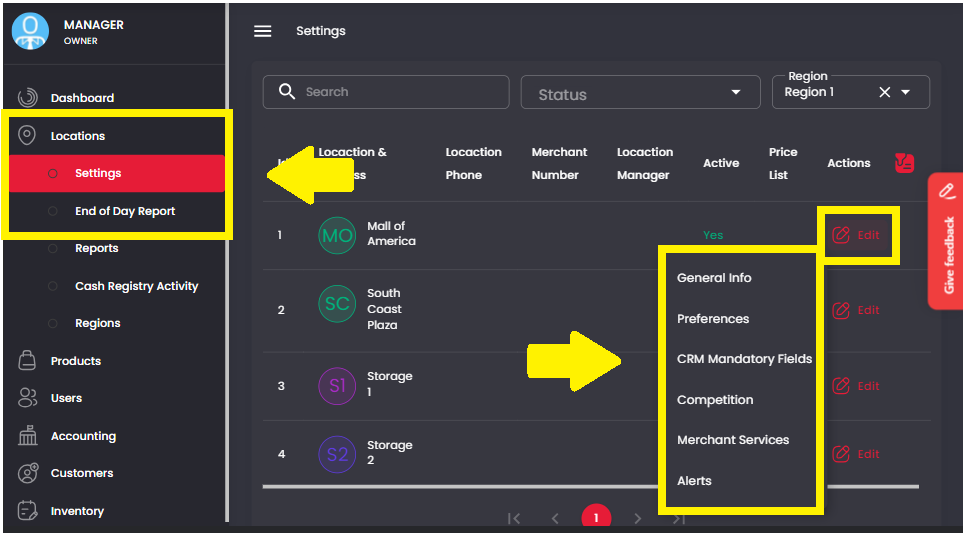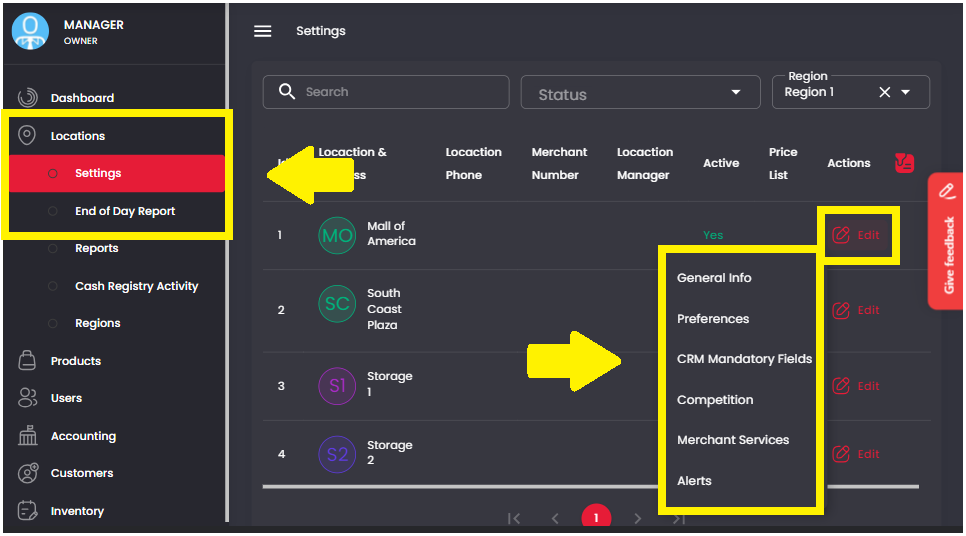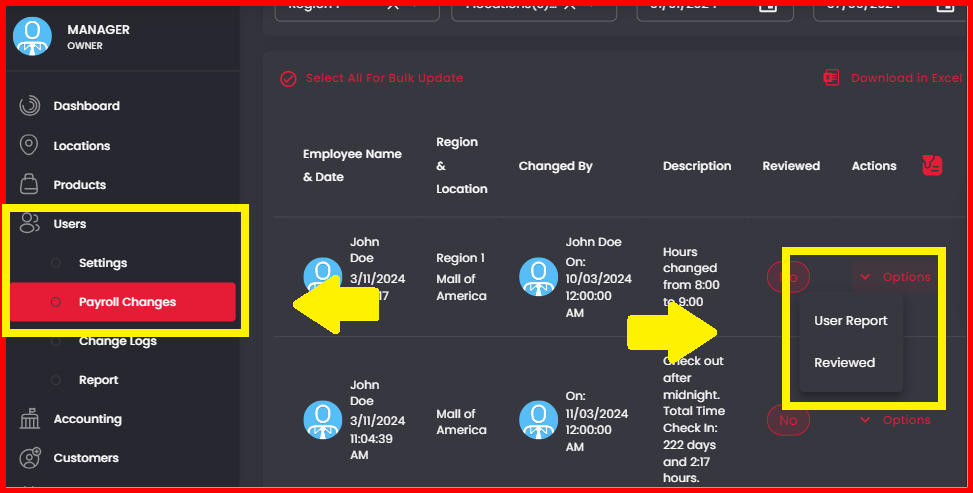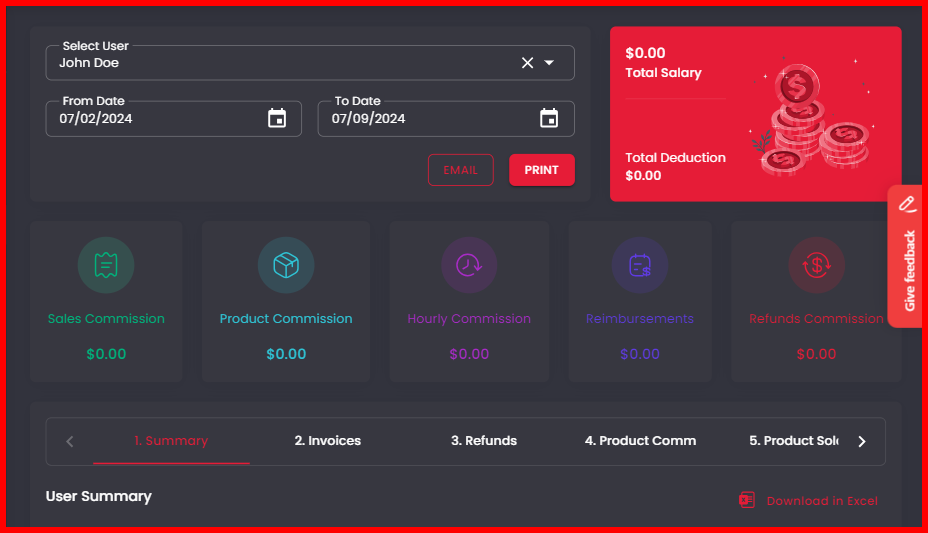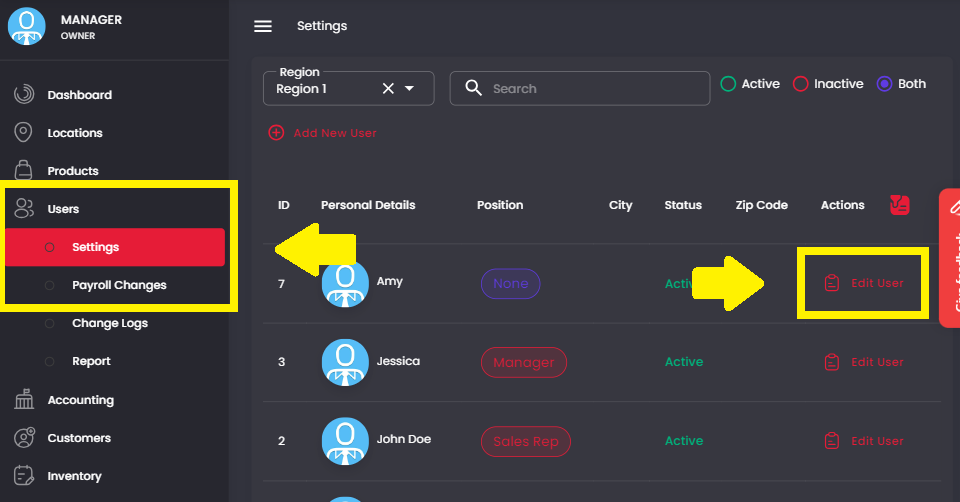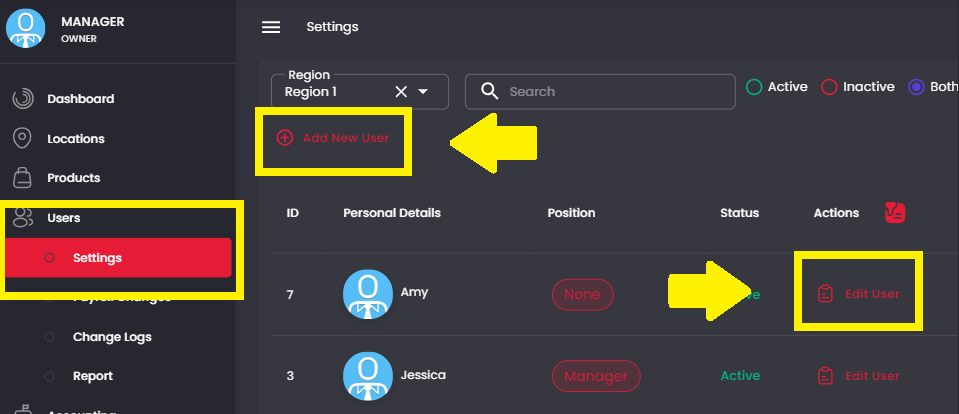
1. From the Management Screen, click on Users > Reports. Select the desired Employee and date range, then click on “Hours”.


To Add or Edit an Employee’s hours, follow the directions below:
1. To add a day of work without specific hours, simply click on “Add New Day” and fill out the information.

2. To add a check in/out for the employee, click on “Add Check In/Out”. Then fill out the necessary information and click “Add Check In/Out” at the bottom once finished.

3. To edit hours for an employee, simply click on the “Edit Time” button next to their hours worked. Then make the changes as necessary.