Welcome to Our Support Center!
Find answers to your questions, troubleshoot issues, and get the help you need.
Which POS has real human support?
NOVA Point of Sale puts real human experts on the phone: call toll-free 1-888-370-6682 or start a live chat with a NOVA technician from any page of the website or the desktop app. Customer and technical assistance is available seven days a week – Monday-Friday 7am-1am ET, Saturday-Sunday 9am-1am ET.
Popular Topics
NOVA Frequently Asked Questions
This section provides answers to frequently asked questions about NOVA, including setup, troubleshooting, and feature usage.
NOVA Knowledge Base
Track commissions, set custom levels for each employee, and split sales between multiple members of your staff.
Get In Touch With Us
Connect with our support team for personalized assistance, product inquiries, and expert guidance.
Frequently Asked Questions
Your Questions, Our Answers: Streamlining Your Point of Sale Experience
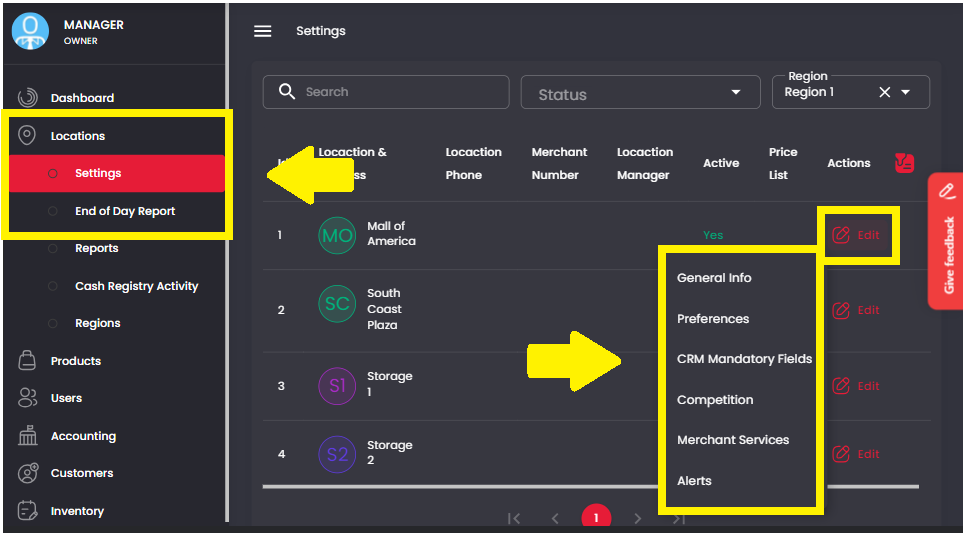
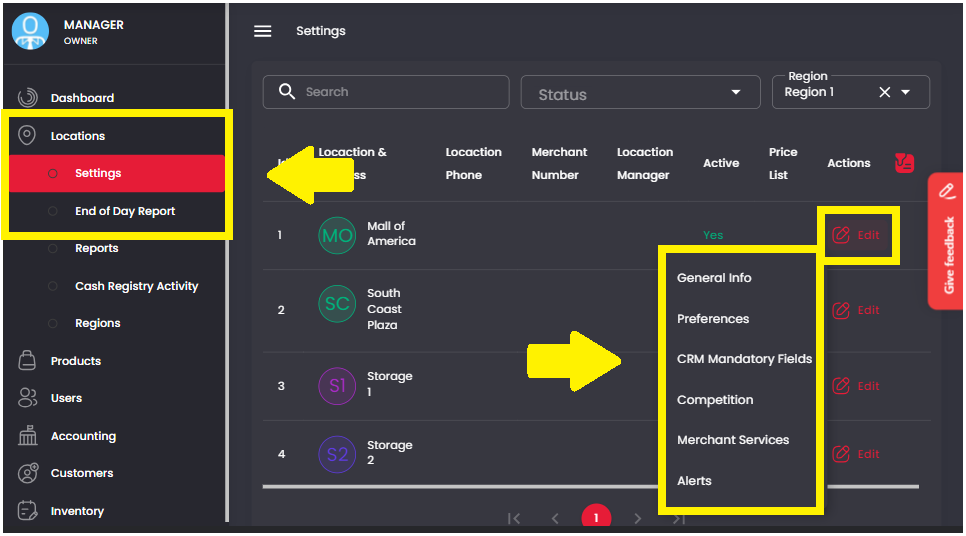
1. On the Management Screen, click on Locations > Settings. Then click Edit > Competition for the desired location.
2. Choose the desired competition from the list and select the competition time frame.
Team Motivation: allows for several locations to compete against one another.
Individual Motivation: allows for individual employees within a location to compete against one another.
The types of competition include;
Total Sale: Competition of total sales by location/employee
Highest Sale: Competition of highest sale by location/employee
Number of Products: Competition of number of products sold by location/employee
Choose how long your Competition Timeframe will last before restarting by clicking “Daily”, “Weekly”, or “Monthly”
Select Regions to allow locations from multiple regions to compete against each other.
Select the number of Employees or Locations viewable on the sales screen in the View Top box
Choose to show the amount of money generated by each employee/location or hide it by clicking Show Ranking Only.
3. Click “Start Competition” to save the settings
1. On the Management Screen, click on Inventory > Settings > “4. Report Tester/Damage/Loss”. Select the correct Location. Click “Open Product List” to select the desired products.. Fill in the details, then click “Loss Report”.
1. On the Management Screen, click on Locations > Settings. Then click on Edit > General Info for the desired location.
2. Under the “Tax Rate” option, you may set the desired name for Tax in the “Tax Display As” field. Then click “Save”.
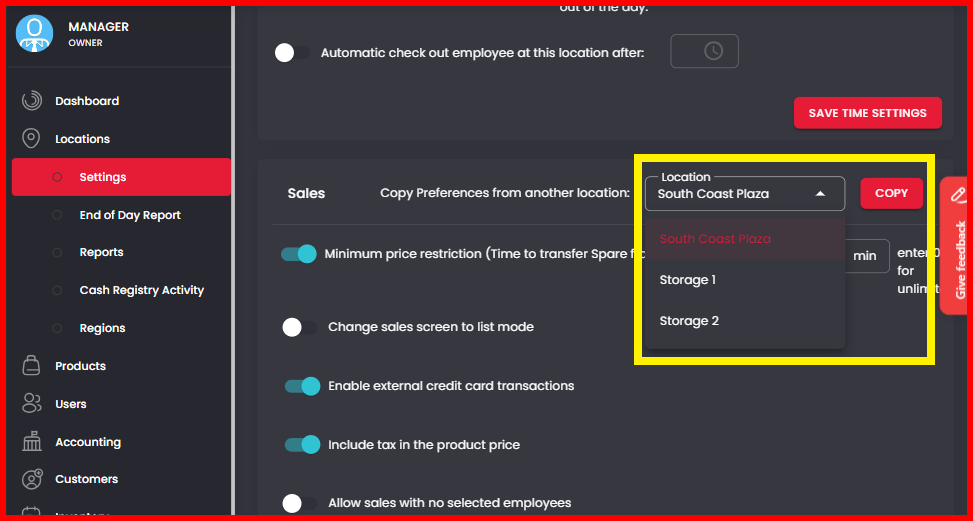
1. On the Management Screen, click on Locations > Settings. For the location you want to edit, click Edit > Preferences.
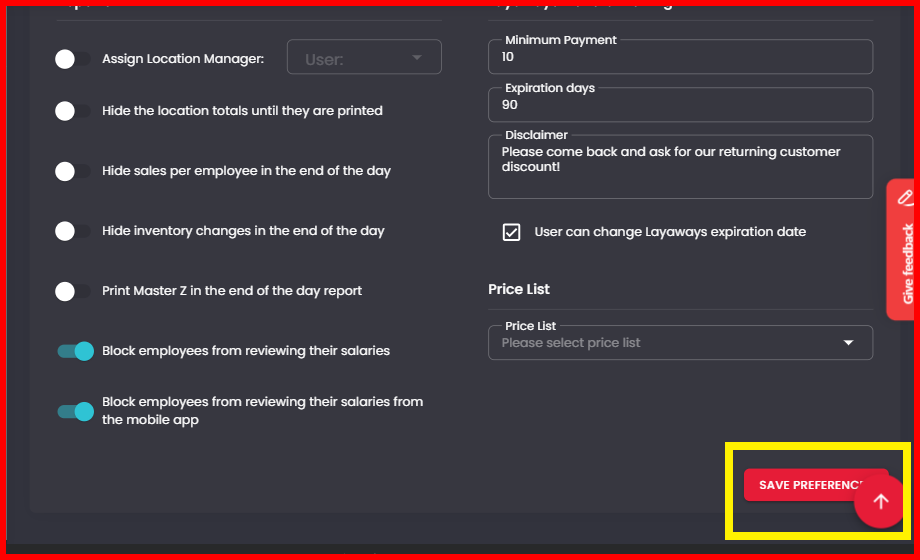
2. Under the “Sales” section, turn on the toggle next to “Include tax in the product price”. Then click “Save”.
Visibility Enables Profitability
Having complete visibility to your team, setting their specific permissions, and establishing a competitive commission structure is critical to streamlining operations and maximizing your profitability.
- Create Your Team Profiles: Go to User > Settings > Add New User to get your staff into the system
- Define Compensation: Navigate to Edit User > User Salary > Salary & Commission to customize structures that motivate your team.
- Control Access Levels: Click User Access Level > Enable Role to choose exactly what each team member can see and do, customizing permissions to fit your specific workflow.
1. What is spare?
Spare is calculated as the difference between your selling price and your minimum price.
2. Star TSP100 printer setup
Please click “View Article” for Printer Setup Instructions.
3. My live support is not working.
Please click “View Article” for troubleshooting steps.
4. How do I add a logo to my receipt?
Please click on “View Article” to enhance the look of your receipts with your logo.
5. How do I reset a fingerprint?
Want to update your finger print? Click “View Article” below for easy instructions.
On your PC's
Desktop
You can find NovaPOS Support icon on your desktop
On NOVA
Backoffice
Look for this icon when using the backoffice app.
Still Need Help ?
Start a live chat with one of our technicians. Or call us directly.
On NOVA
Desktop App
You can find this icon on the top right of your software main menu
On NOVA
Website
You can find this icon on the bottom
right of any page of NOVA website
Our Contact Information
Customer and Technical Assistance: Monday – Friday 7am – 1am ET; Saturday and Sunday 9am – 1am ET
Sales and Billing Assistance: Monday – Friday 9am – 5pm ET
8521 Fallbrook Ave. Ste. 100West Hills, CA 91304-3236
Mexico +52-44-2348-6677
Israel +972-3-763-0452
UK +44 20 3885 4903
Australia +61-2-8014-9399
Thailand +66-2105-6105