
Step 01
Your company credentials
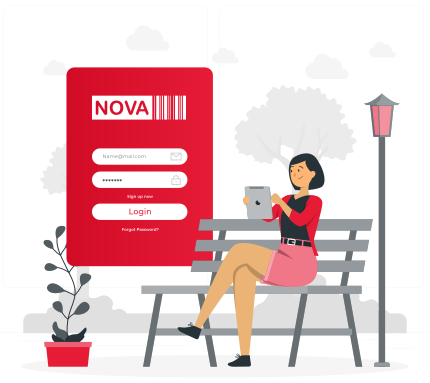
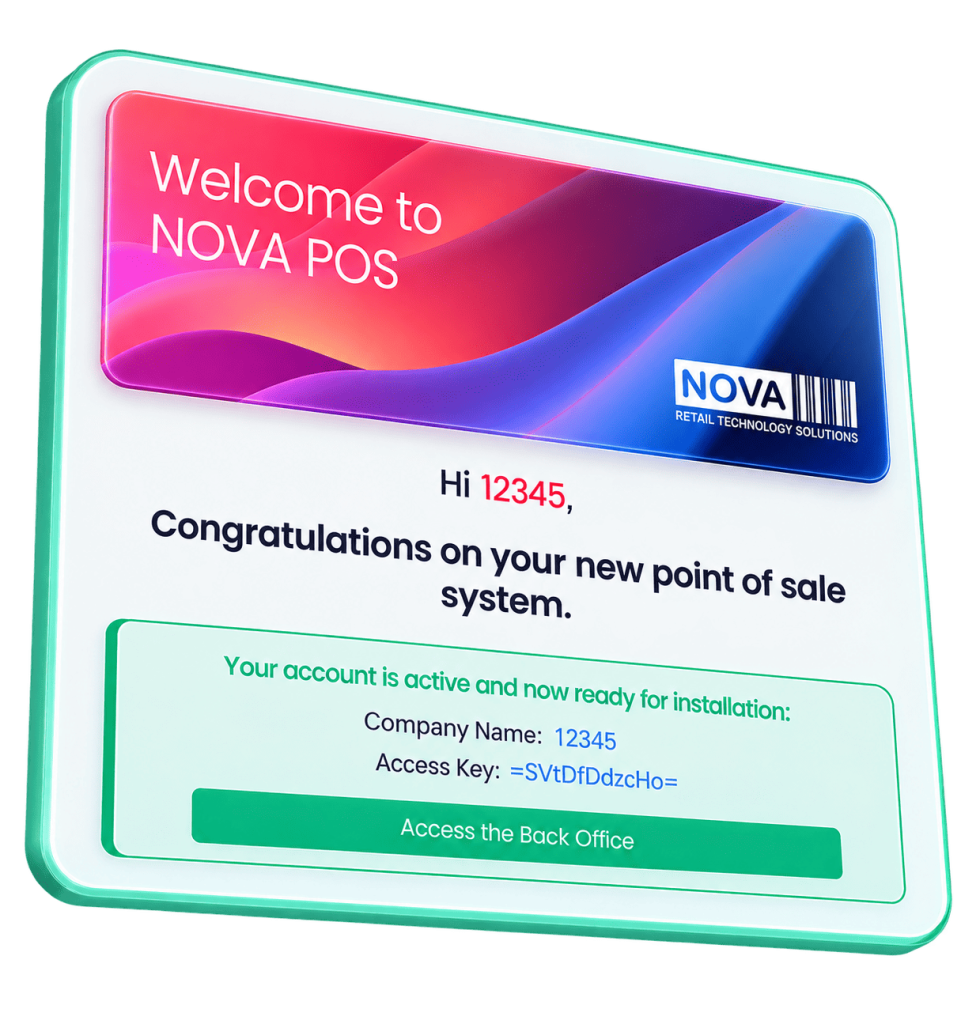
Once your account is set up, check your email for a welcome message from NOVA. It includes:
- Your Company Name
- Your Access Key
- A link to download NOVA Storefront
Tip: Save or star this email — you’ll need these details again when signing in on new devices.
Recommended
User password
Used for everyday sign-in, and recommended for account security.
- Login to Backoffice.
- Click Users in the left-hand menu.
- Click Settings.
- Select Edit User on the right.
- Choose a Password within the red box.
- Click Submit at the bottom of the screen.
Optional
Location password
A location password is optional.
How to create a location password
- Login to Backoffice.
- Click Locations in the left-hand menu.
- Click Settings.
- Select Edit Location on the right.
- Choose your Password.
- Click Save at the bottom of the screen.
Step 03
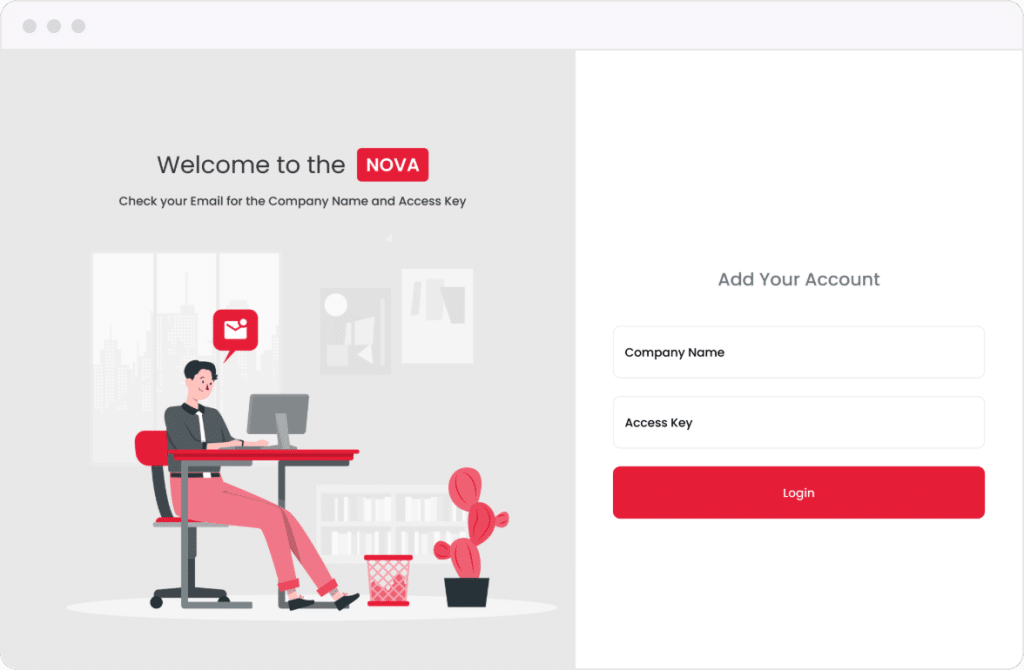
Add your company account
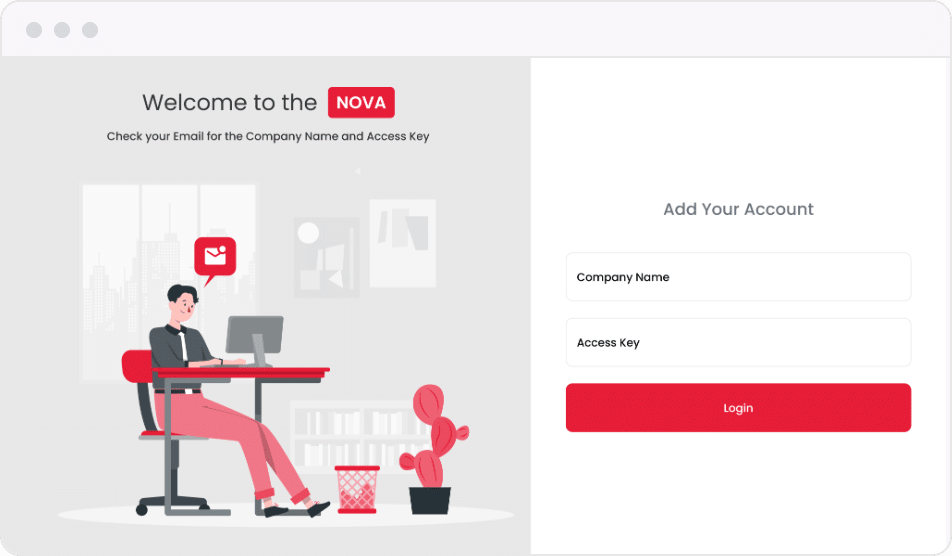
On this screen, enter the two details from your “Welcome to NOVA POS” email:
- Your Company Name
- Your Access Key
Tip: Enter them exactly as they appear in the email.
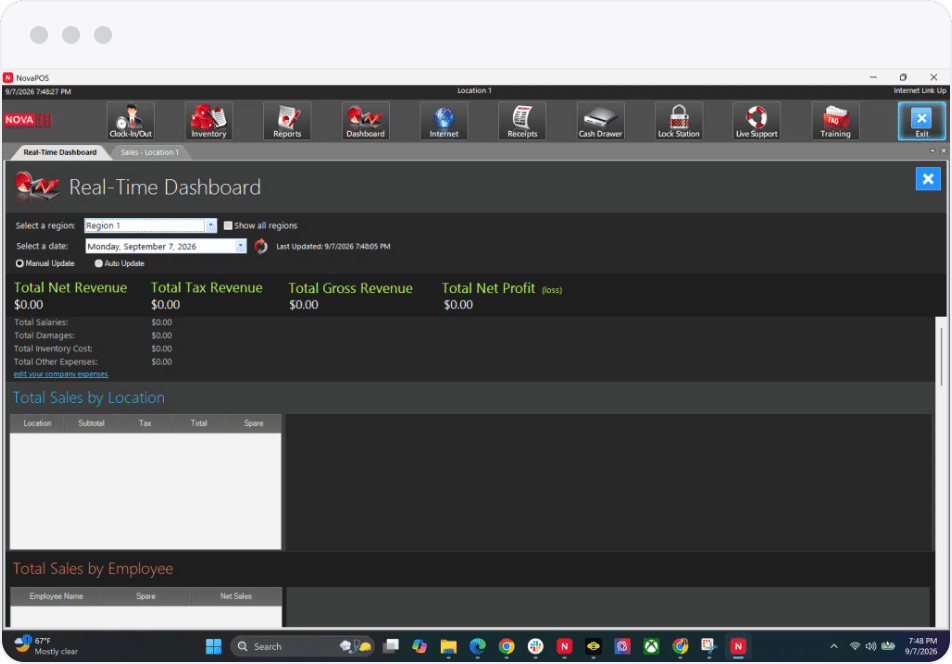
If you’ve installed the Storefront app and are working in the NOVA sales screen, follow these steps to switch to Back Office.
Step 01
From the sales screen, click Exit in the top right corner.
Step 02
Click the Managers icon at the top right.
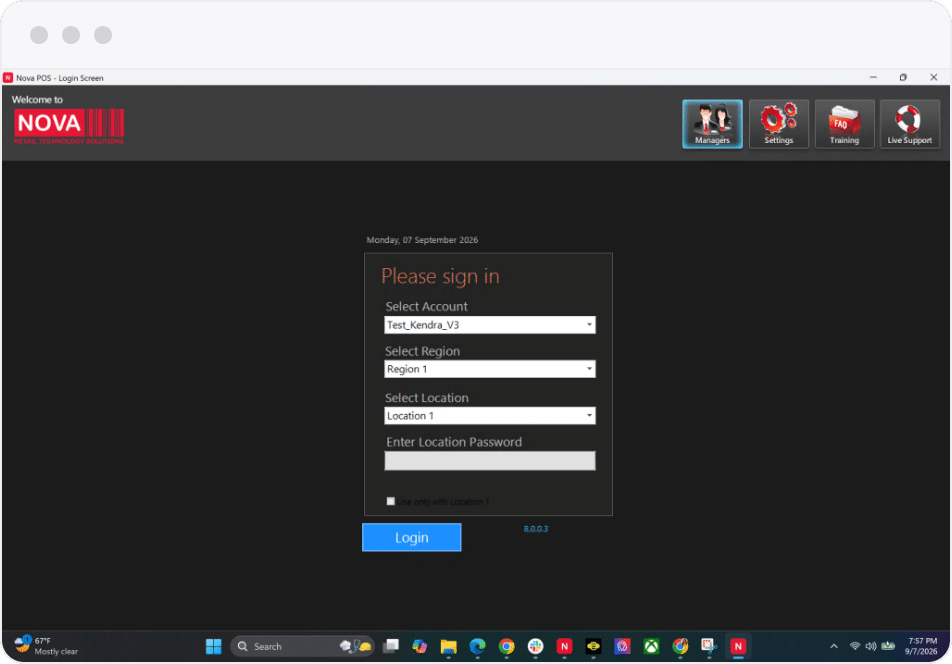
Step 03
Type the user password you created and click Sign in.
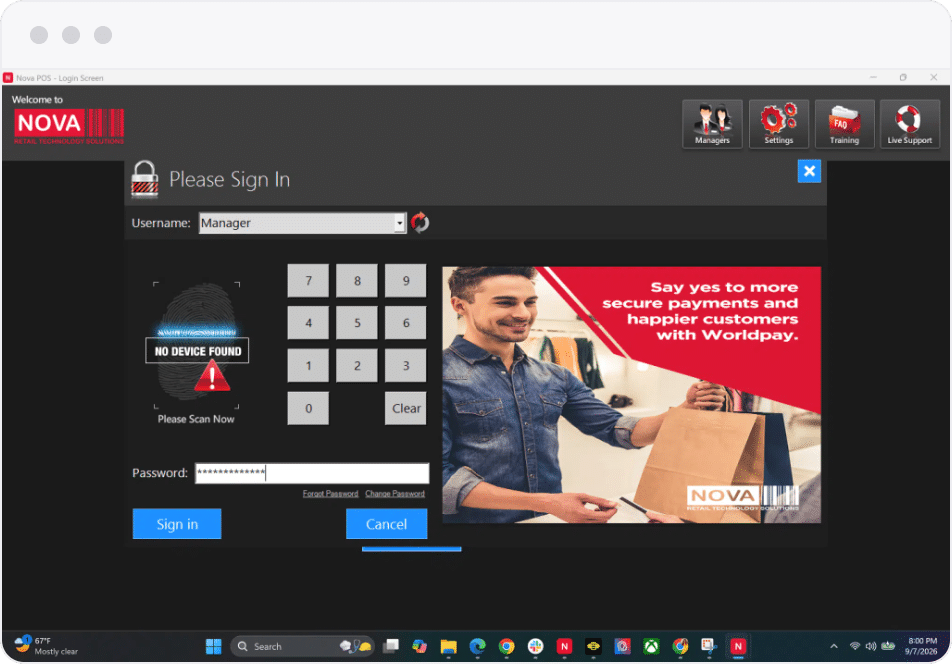
Step 04
You’re now in Backoffice inside the NOVA app.
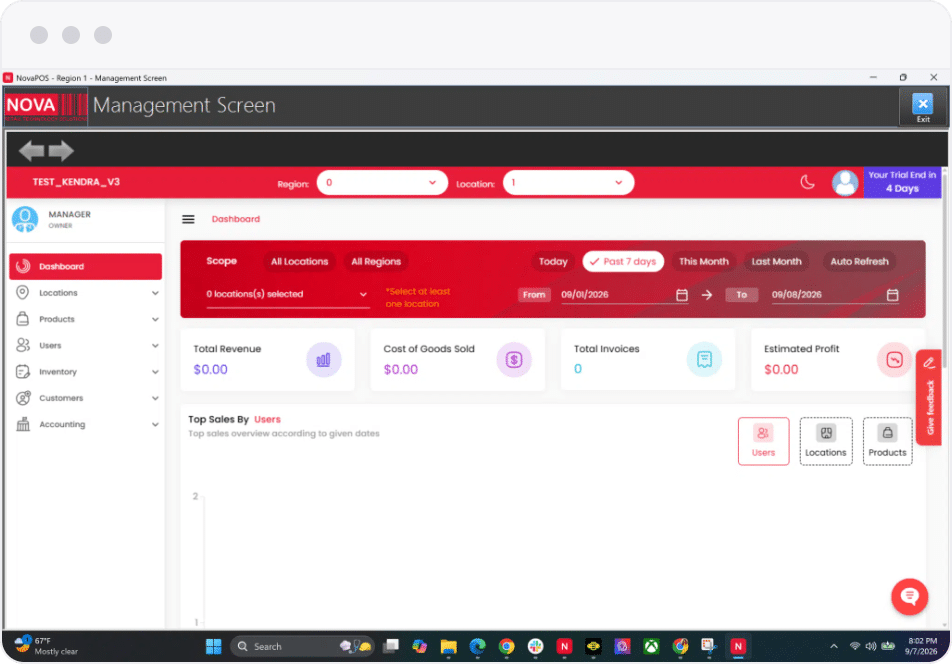
Sign in
Access Backoffice From Any Browser and Manage your business online
- Go to backoffice.novapointofsale.com
- Highlight your company.
- Click drop down to choose your region.
- Log in with established username and password.
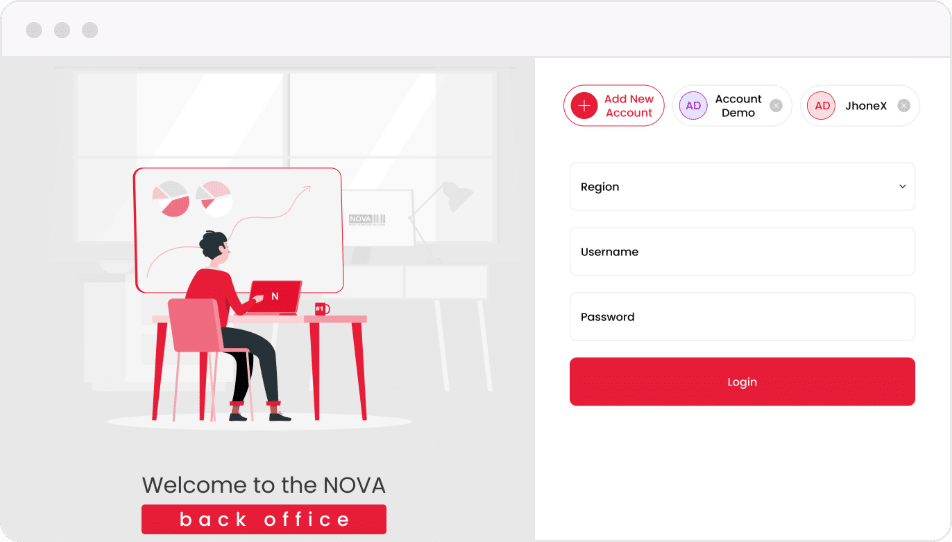
Add an account
Company not listed? Click “Add New Account”
- Refer to the “Welcome to NOVA Point of Sale” email
- That email has your Company Name and Access Key
- Copy credentials exactly into the fields.
Step 01
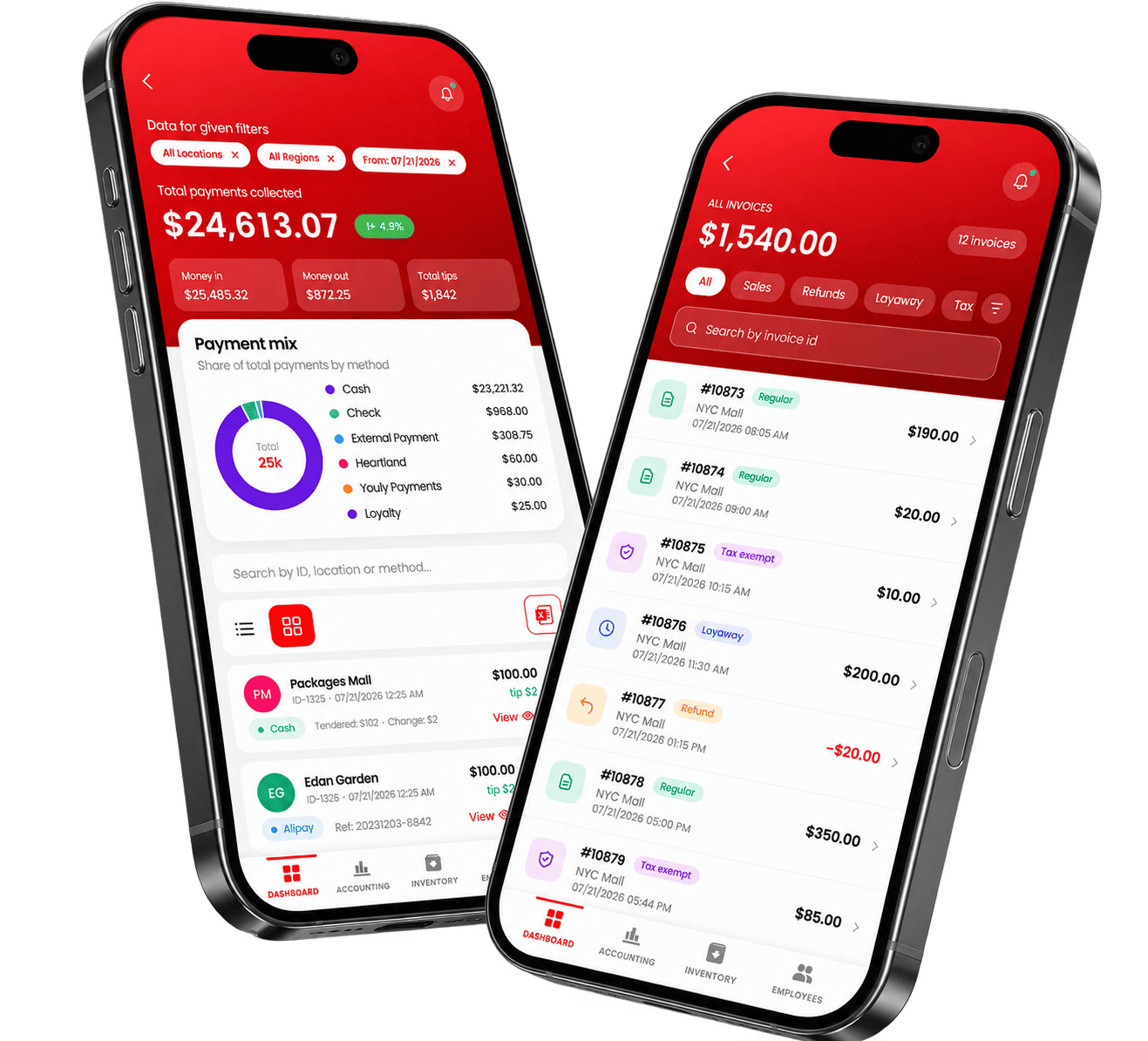
Download NOVA Mobile
Stay connected to your store anytime, from anywhere.
- Tap the Google Play or App Store button above.
- Download the NOVA POS app to your phone.
Step 02
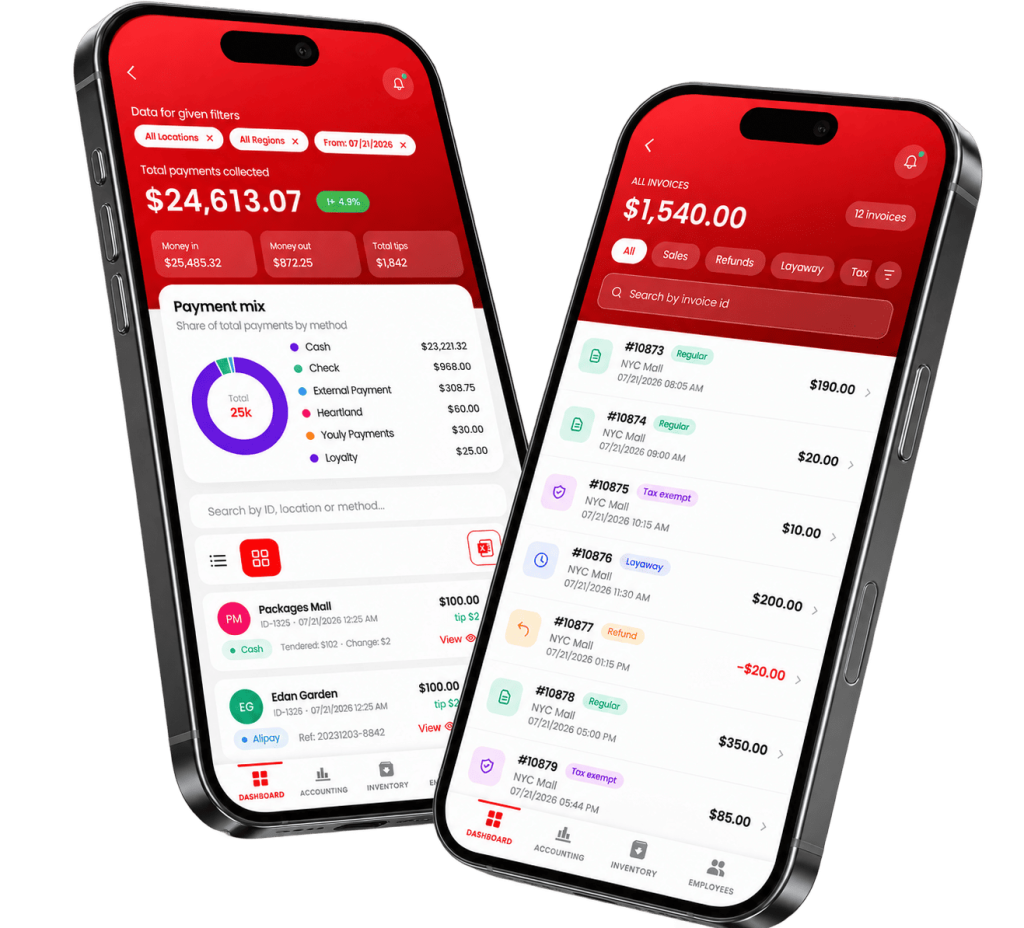
Add your account
Once NOVA POS is installed on your phone:
- Open the app.
- Tap Start.
- Tap Add account.
Step 03
Fill in these three fields:
Then tap Add account to connect and open your dashboard.