Price Lists are a way to have different prices at each of your locations or to create temporary prices in the case of a holiday or sale.
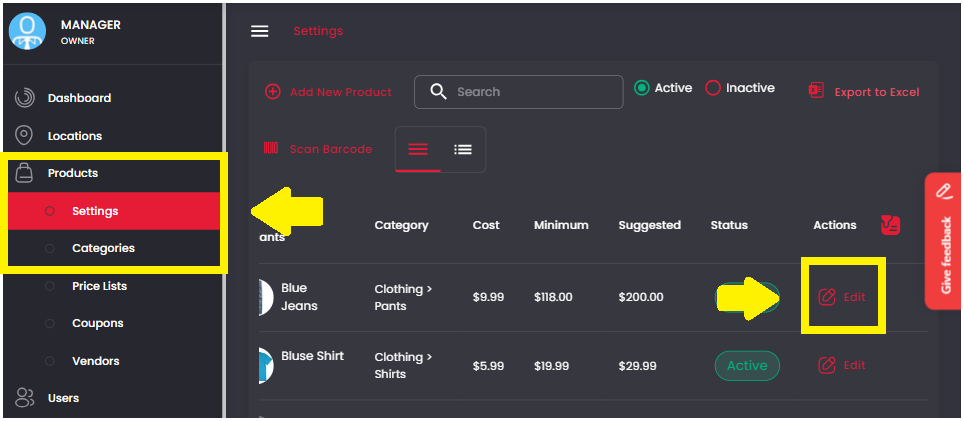
1. On the Management Screen, click on Products > Price Lists. Then click “Add New Price List”.

2. Under General Information fill in your price list name, then select the desired locations from the drop down menu.

3. To edit the prices for all products, click “Select All For Bulk Edit”, then check the box for “Update Pricing”. Fill out the desired information then click “Update Selected Products”. Then click “Save” on the bottom.


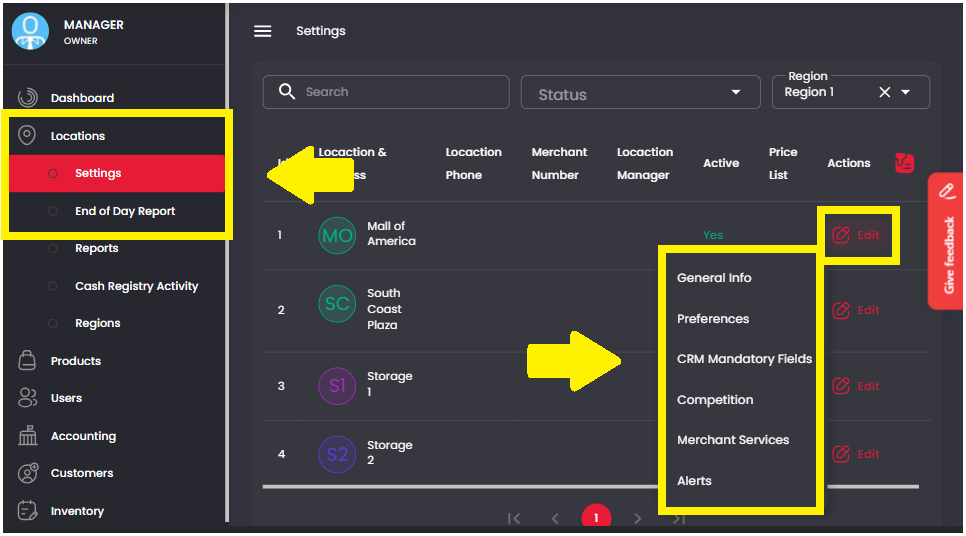
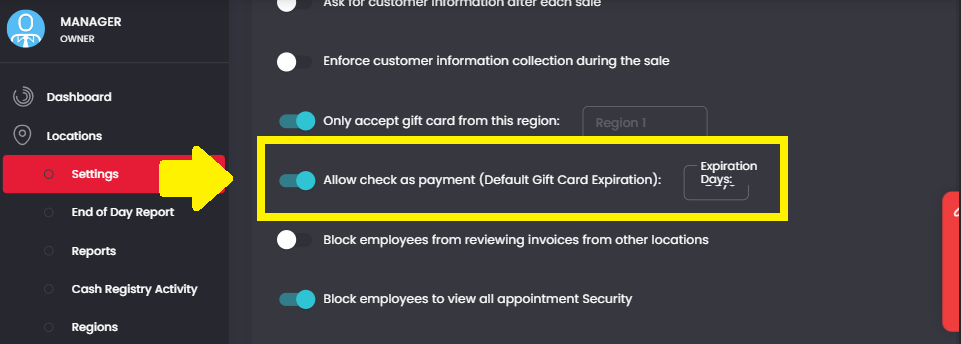
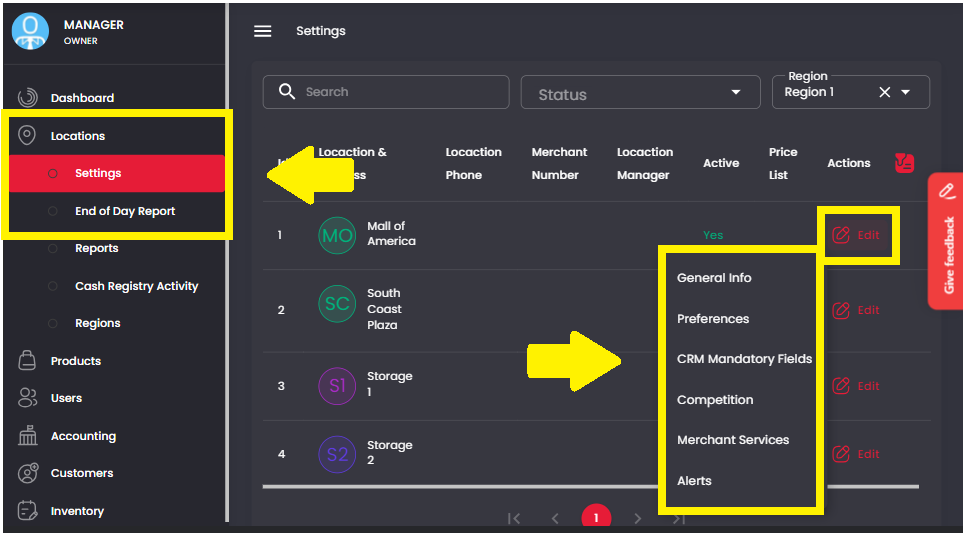
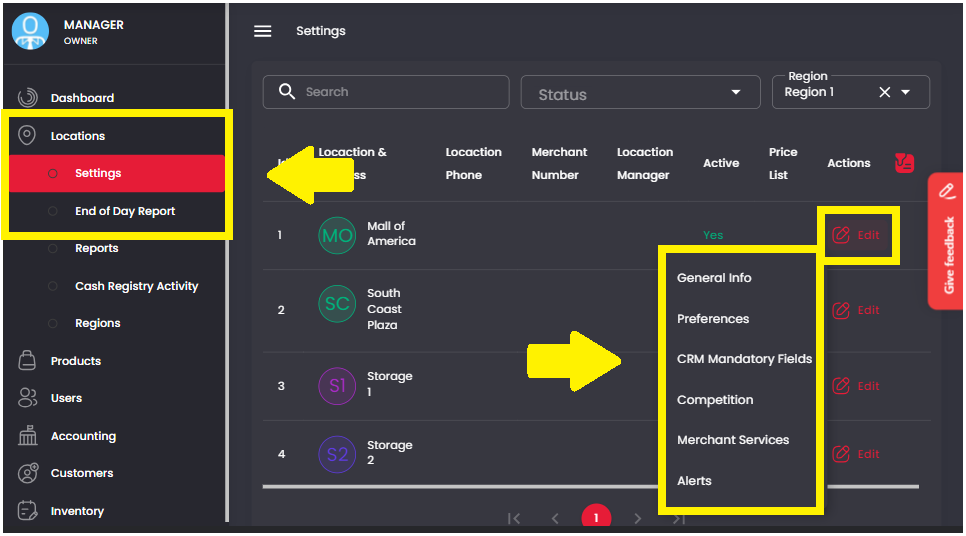
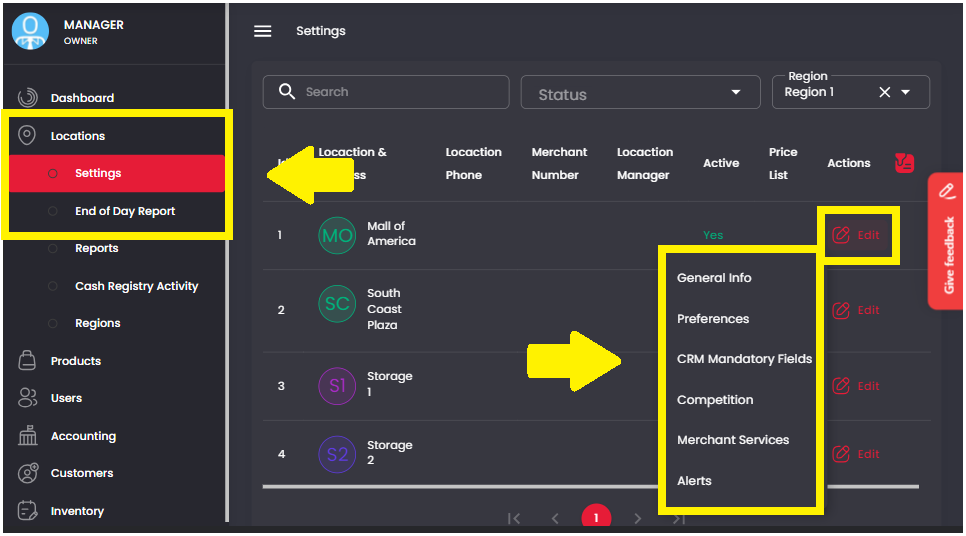
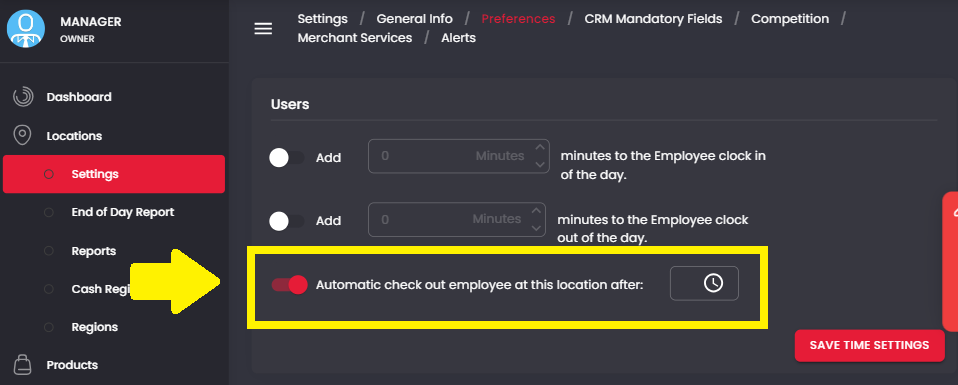
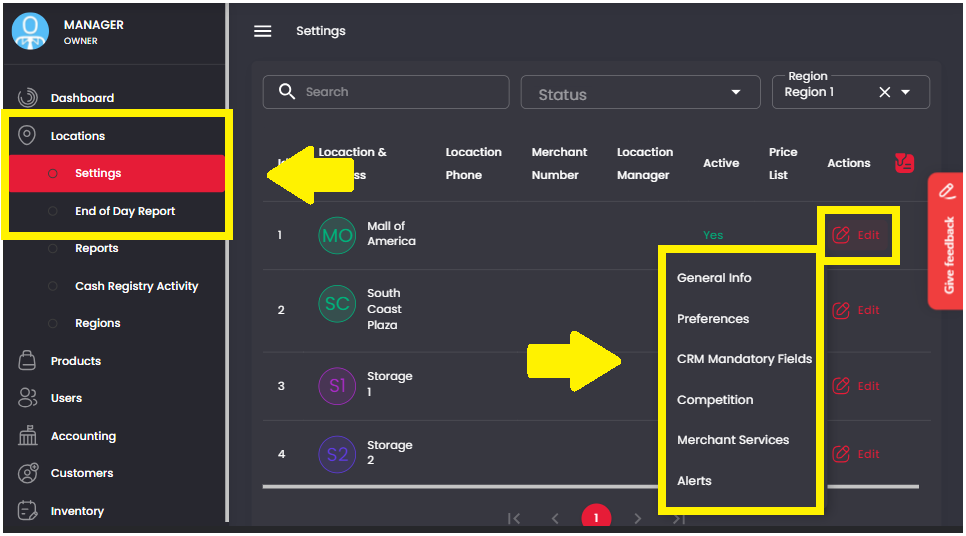
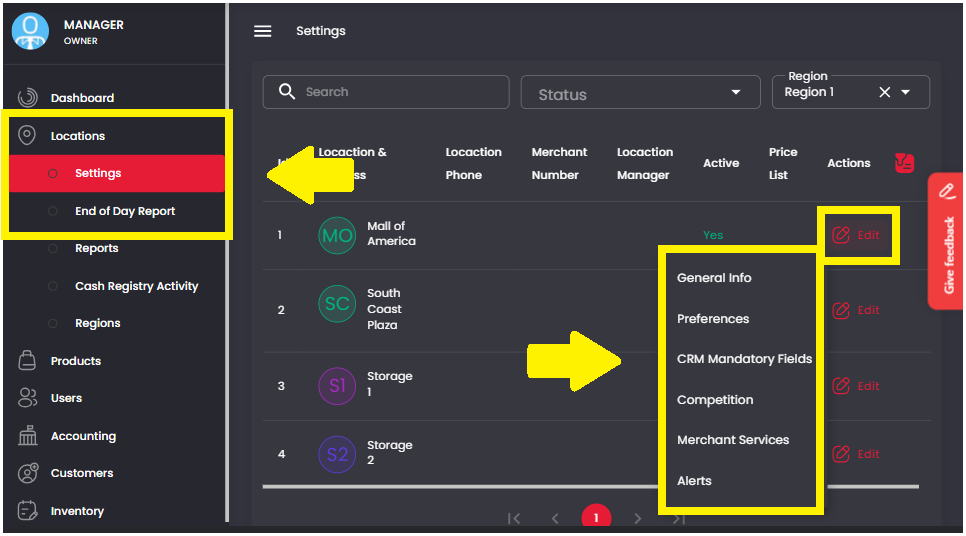
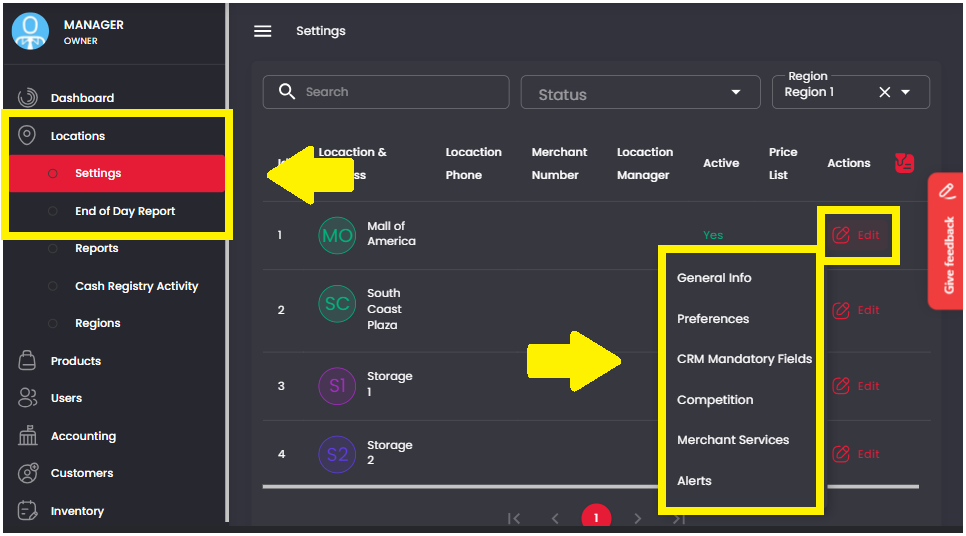
4. Once you have created a Price List you may also turn it on or off by going to Locations > Settings. Then click on Edit > Preferences on the desired location.

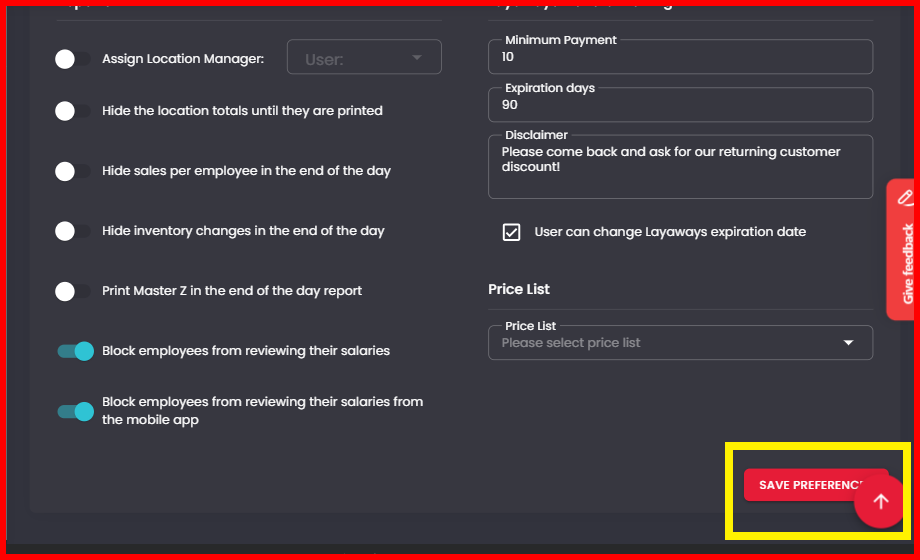
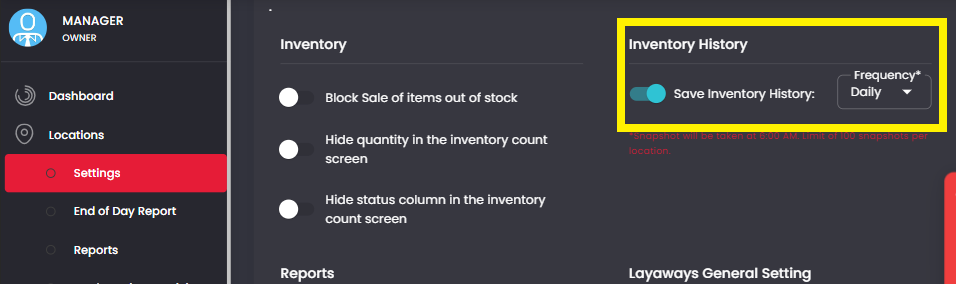
5. At the very bottom of the page you will be able to add or remove price lists.